VibWire-108 Serial Port Communications
The instructions below detail the operations to follow to operate the VibWire-108 across both the SDI-12 and RS-485 serial networks.
No sensor configuration details need be applied to the VibWire-108 when operating with the cable free transmitter, RS-485 or SDI-12 network. Simply connect the sensors to the interface as shown in Fig 2 and initiate the commands listed below.
Recommended Test
Use a single instrument only when undertaking initial measurements with a VibWire-108 on the RS-485 or SDI-12 network. This simplifies the software and will speed up the understanding of the command used to obtain data. It is very easy to test the results measured across the RS-485 and SDI-12 network with the ones shown on-board frequency display of the unit.
The results obtained across the RS-485 and SDI-12 network will be same as those shown on the display for a specified channel.
The default instrument address for a unit straight out of the box is 0
Issue command 0M! to start measurement operations. The VibWire-108 will scan all channels
No sensor configuration details need be applied to the VibWire-
Recommended Test
Use a single instrument only when undertaking initial measurements with a VibWire-
The results obtained across the RS-
The default instrument address for a unit straight out of the box is 0
Issue command 0M! to start measurement operations. The VibWire-
0D0! returns items of data address ± data 4d1, ± data 4d1, ± data 4d1, ± data 4d1
Ensure that each instrument used on a network has a unique ID number assigned within its configuration in order to correctly identify the data that is being recorded.
Ensure that each instrument used on a network has a unique ID number assigned within its configuration in order to correctly identify the data that is being recorded.
Real-time Frequency Display
The VibWire-108-SDI12 contains a 5 digit 7 segment display and this can be used to display the instantaneous frequency from any one of the vibrating wire sensor inputs.
The Vibrating wire sensors can be deployed a considerable distance from the interface and may well be have been embedded into a structure. To ensure that the sensors are operating correctly simply observe the sensor operating frequency and then confirm the result is within the operating range as specified by the manufacturer.
When operating in a real-time mode the instrument frequency display responds instantly to effects upon the sensor.
To use the VibWire-108 as a real-time frequency display follow the instructions below:
Assigning Real-time Frequency Display
To activate the real-time frequency display
1. Starting at
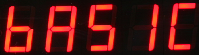
The “Basic” menu item is the first menu item available after the instrument is powered on.
2. Select “Menu In” button
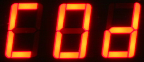
The Display above shows the option required to place Channel 0 for real-time frequency output
the other options available are:
“Analg C0d C1d C2d C3d C4d C5d C6d C7d” C0d = Channel 0 ........ C7d = Channel 7
Once the “C0d” option is selected then the “Menu Out” key has to be pressed to confirm this option.
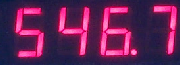
The above example shows a typical real-time frequency result .